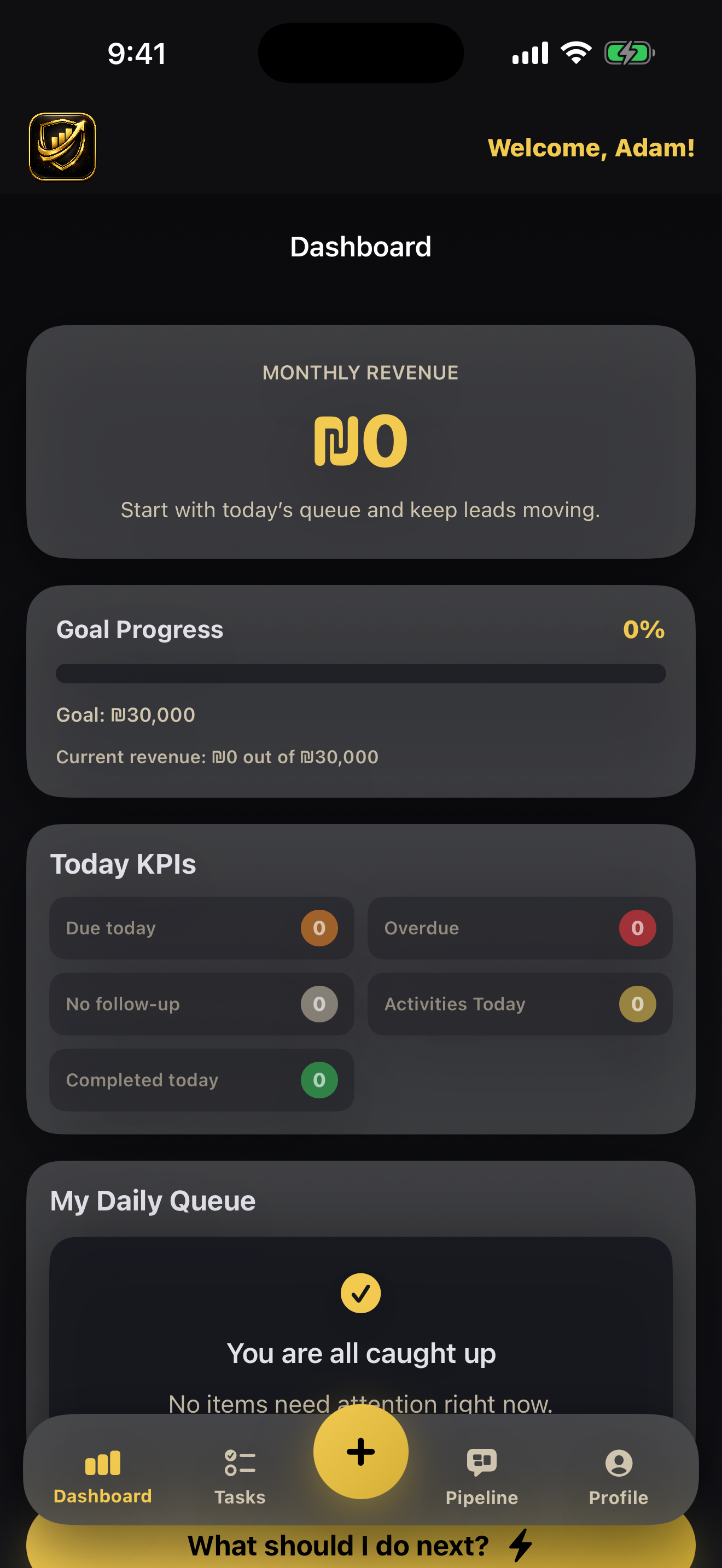
Step 1
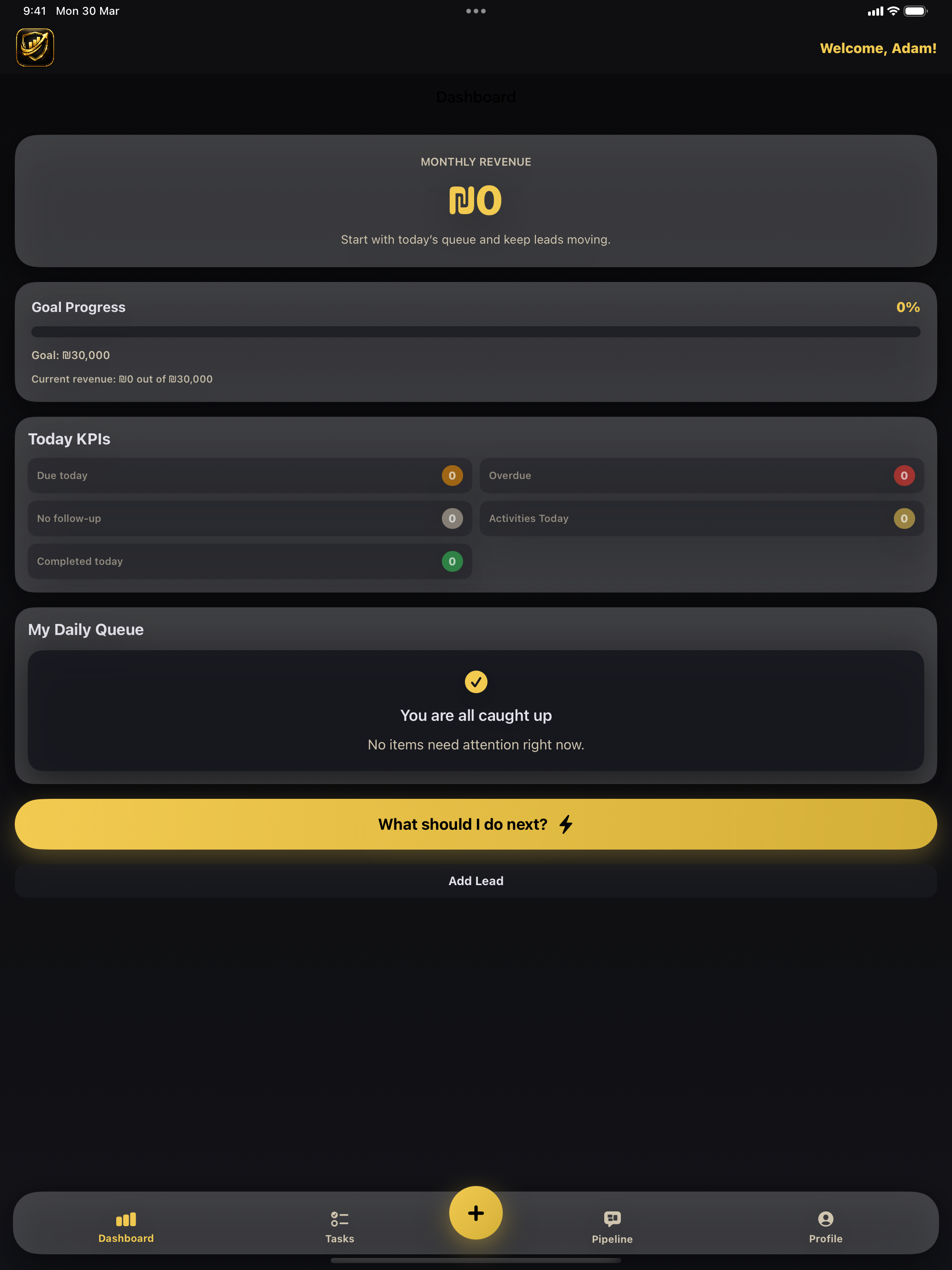
Open Dashboard and read your priorities
Start each day with goal progress, KPI counters, and the queue status to know exactly what to handle first.
Full Usage Guide
Follow the full product walkthrough below. Every step includes a real in-app screenshot so new users can onboard quickly.
Step 1
Start each day with goal progress, KPI counters, and the queue status to know exactly what to handle first.
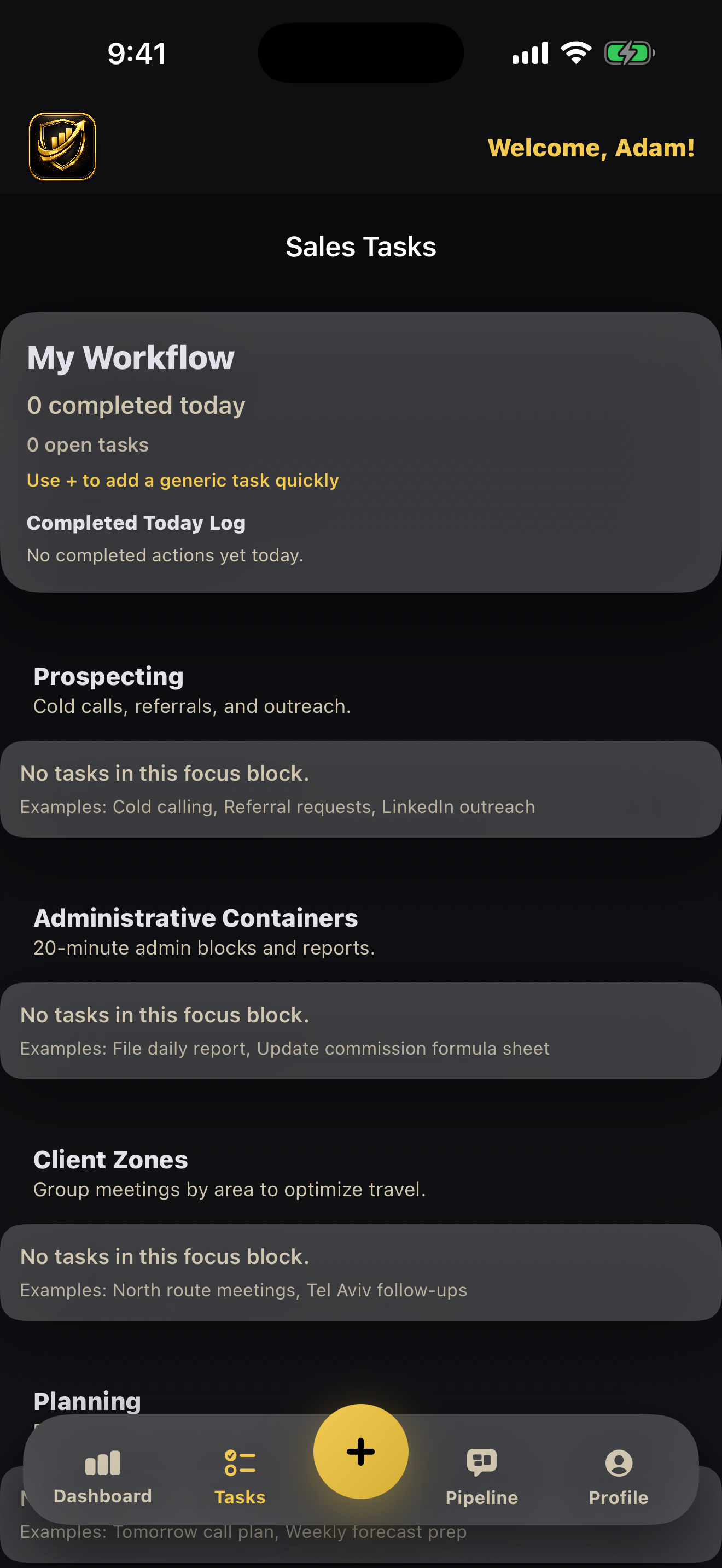
Step 2
Use structured workflow blocks and complete urgent prospecting/admin items quickly.
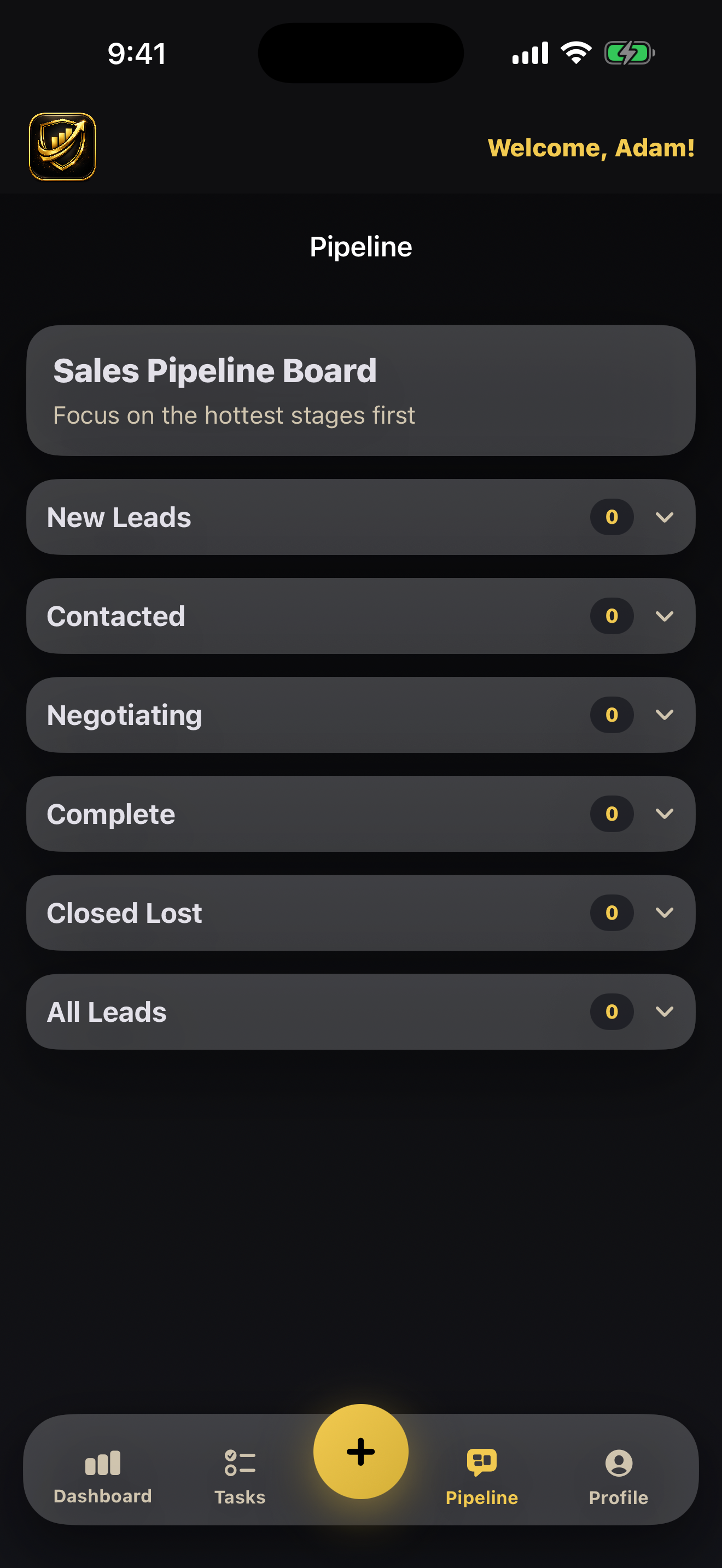
Step 3
Open the relevant stage, contact the lead, and update status in real time.
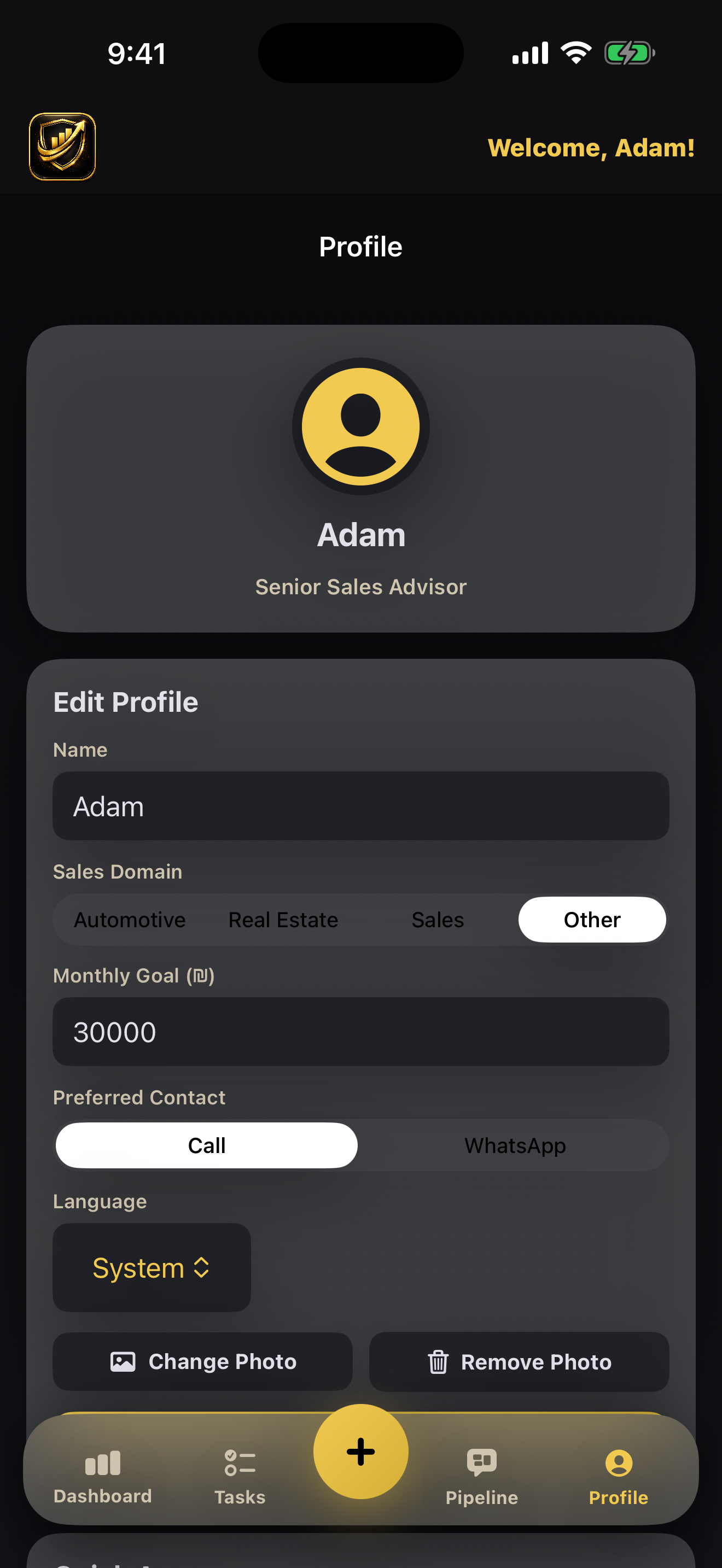
Step 4
Set your language, personal details, and sales preferences for daily use.
Step 5
The same workflow is optimized for iPad to support planning and review sessions.
Install SalesCRM by Spanko and run your daily sales workflow with clarity.
Get the iPhone App